CarbCam: App Tour
A walkthrough of all four tabs in the app — from Scan to History, Stats, and Settings.
1 – Scan Tab
Take a photo
Tap the shutter button to take a photo of your meal. The camera opens in portrait mode; rotate the device if you prefer landscape.
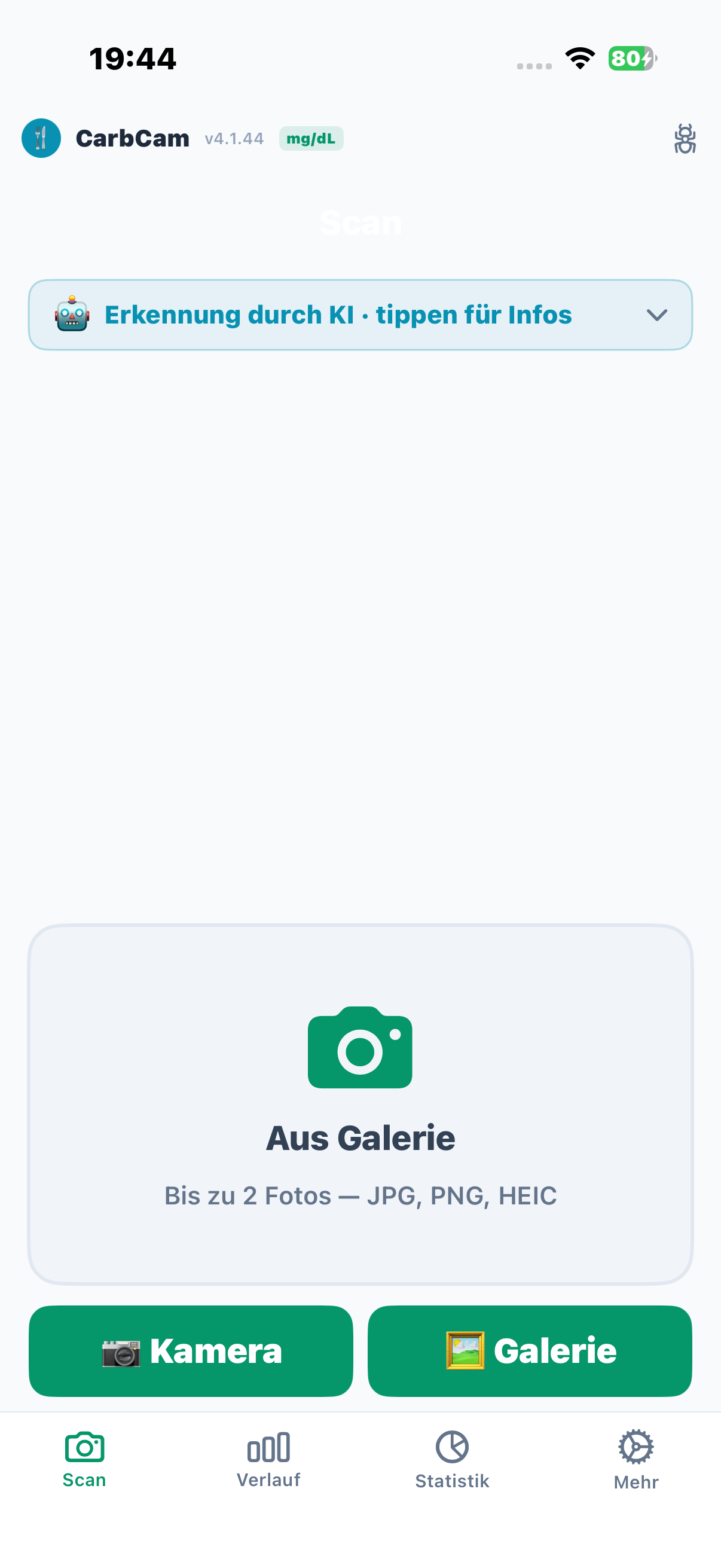
Gallery
Alternatively, choose an existing photo from your gallery using the image icon next to the shutter button.
Barcode
CarbCam detects barcodes automatically in the captured photo. When a barcode is detected, the app shows a dialog: you choose whether to look up nutritional values via Open Food Facts and USDA or have the photo analysed by AI. For packaged products, the AI additionally reads the nutrition table and distinguishes “per 100 g” from “per portion”.
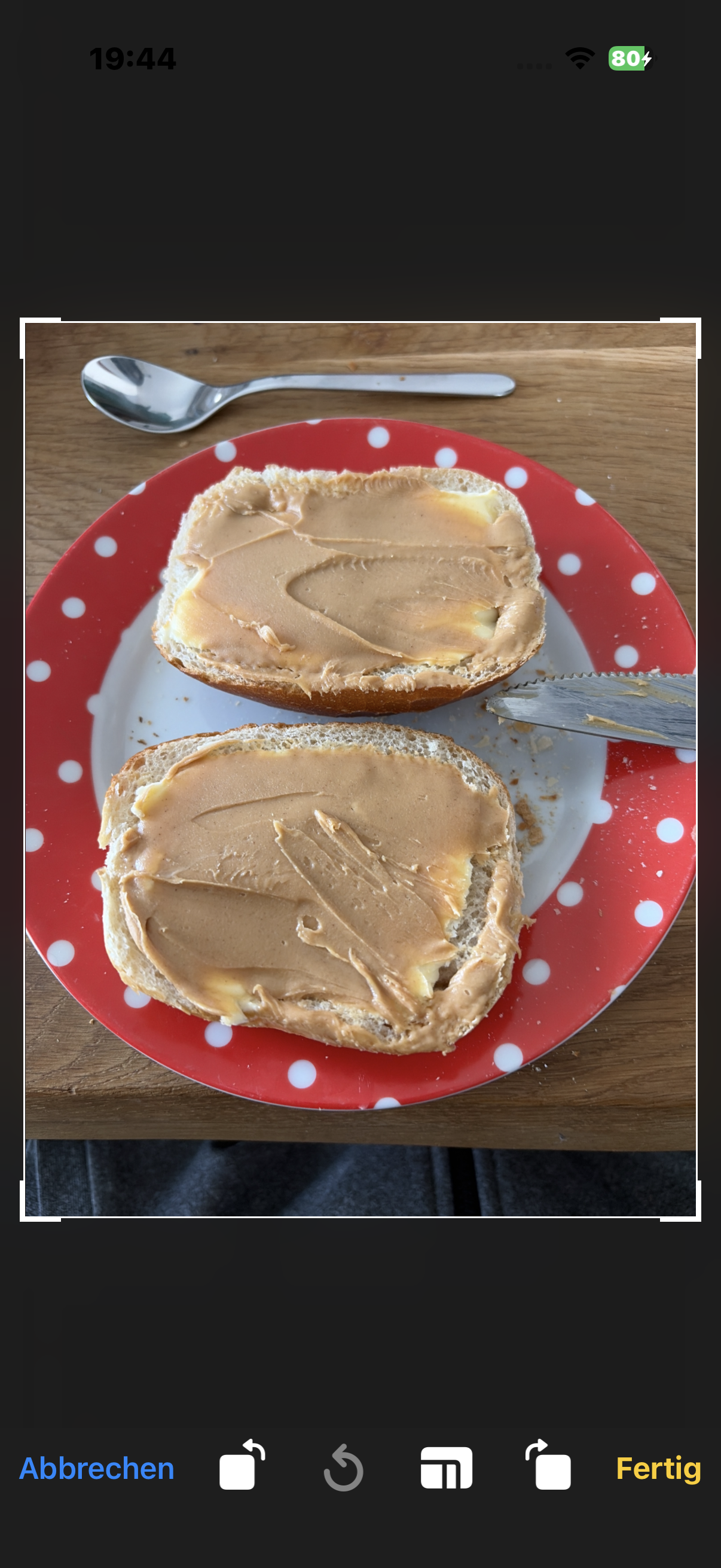
Crop
After taking the photo, the crop screen opens. Crop the image to the plate — this significantly improves recognition accuracy.
Mark a reference object
Tap the photo and mark a scale object (dice, coin, or AR marker). The AI uses it as a size reference and does not count it as carbohydrates.
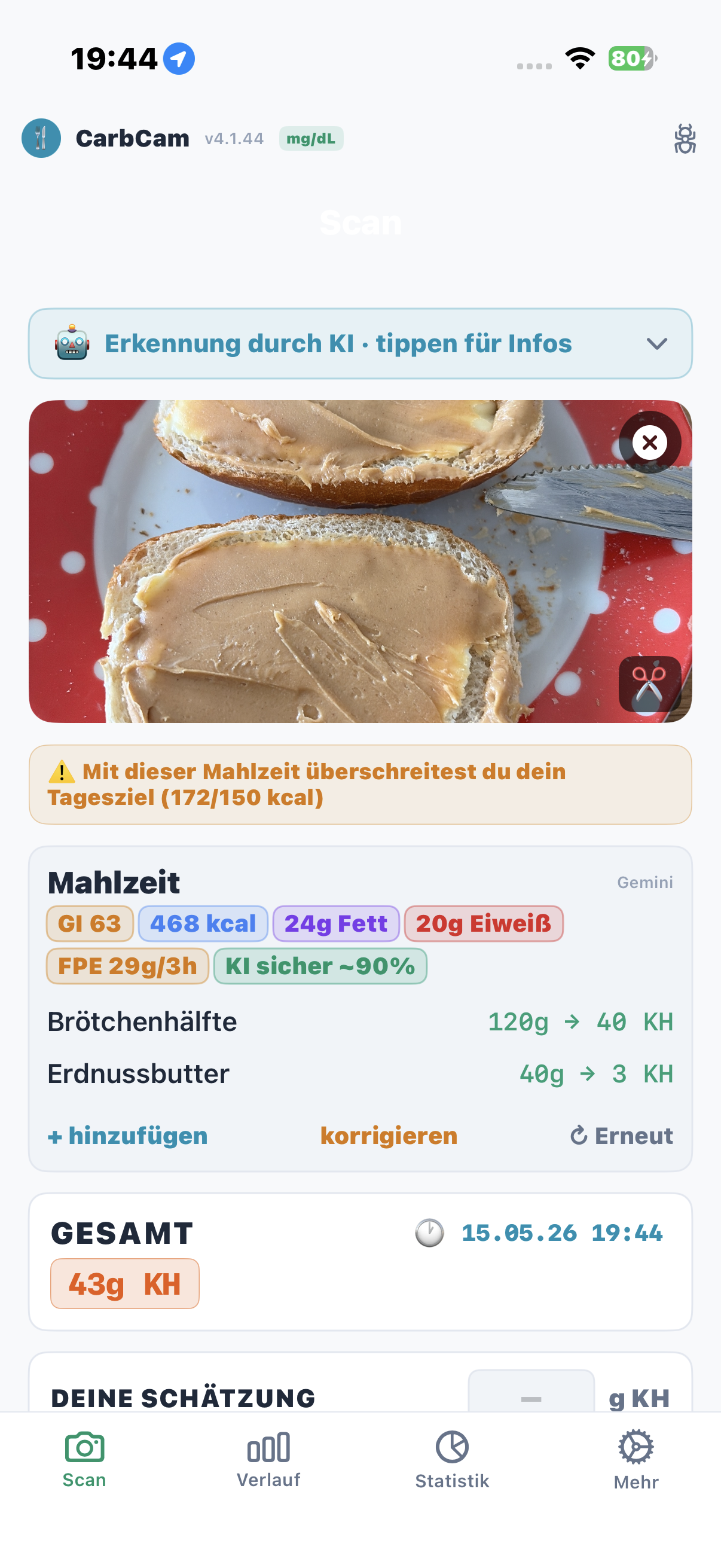
Recognition & Values
CarbCam displays the result as a compact card with all nutritional values:
- Carbs — carbohydrates in grams
- kcal — calories
- FPU — fat protein units
- Fat — fat in grams
- Protein — protein in grams
Actions
Below the result you will find:
- Save — stores the entry in History (and optionally in Nightscout)
- Edit — manually adjust carbs, fat, and protein
- Re-analyse — send the same photo to the AI again
- Correct — describe misrecognised items in text so the AI gets it right on the next attempt
- Discard — delete photo and result
2 – History Tab
Chronological list
All saved meals appear in chronological order — newest first. Each row shows a thumbnail, title, carbs, and timestamp.
BG Graph (Nightscout)
If your Nightscout connection is active, CarbCam loads the blood glucose data from Nightscout and displays the BG curve below each meal (around the meal, time window platform-dependent). This lets you analyse the post-meal BG trend directly from your Nightscout data.
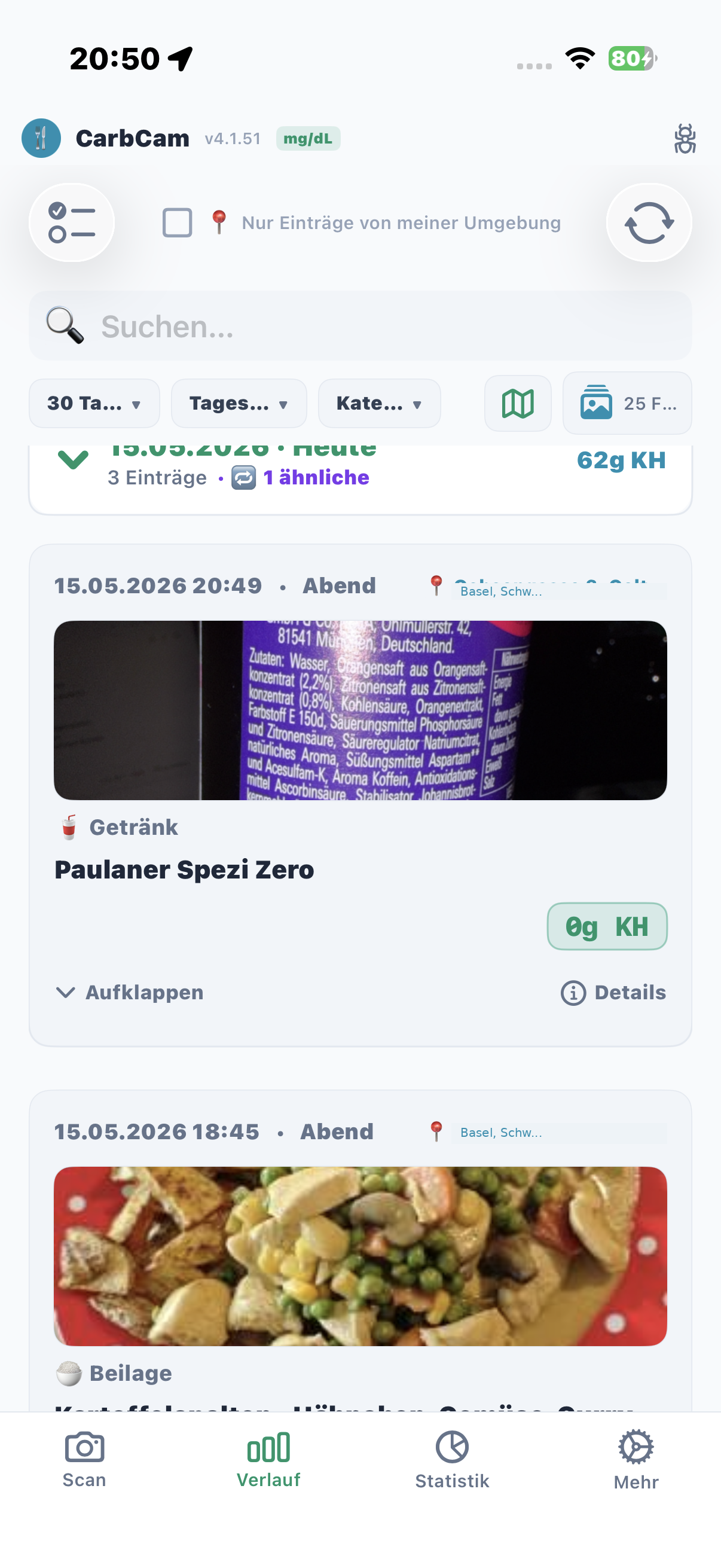
Filter
Filter by date, time of day, category, nutritional value range, or location (“only from here”), plus full-text search and saved filters. Tapping the daily carb total in the date row shows kcal, fat, protein, and FPU in a popup. Multiple scans can be grouped into one meal. Useful for finding, e.g., all meals with more than 60 g carbs.
Long Press
Long-press an entry to open the context menu: Edit, Delete, Share, or search for similar meals.
Multi-Select
Activate multi-select mode to delete or export multiple entries at once.
Similar Meals
Choose “Similar” from the context menu — CarbCam shows you previous entries with comparable nutritional values.
3 – Stats Tab
Zoom Level
Select the time period: Day, Week, Month, or Year. Swipe left/right to shift the time period.
Summary
At the top of the tab you can see the totals and averages for carbs, kcal, FPU, fat, and protein for the selected time period.
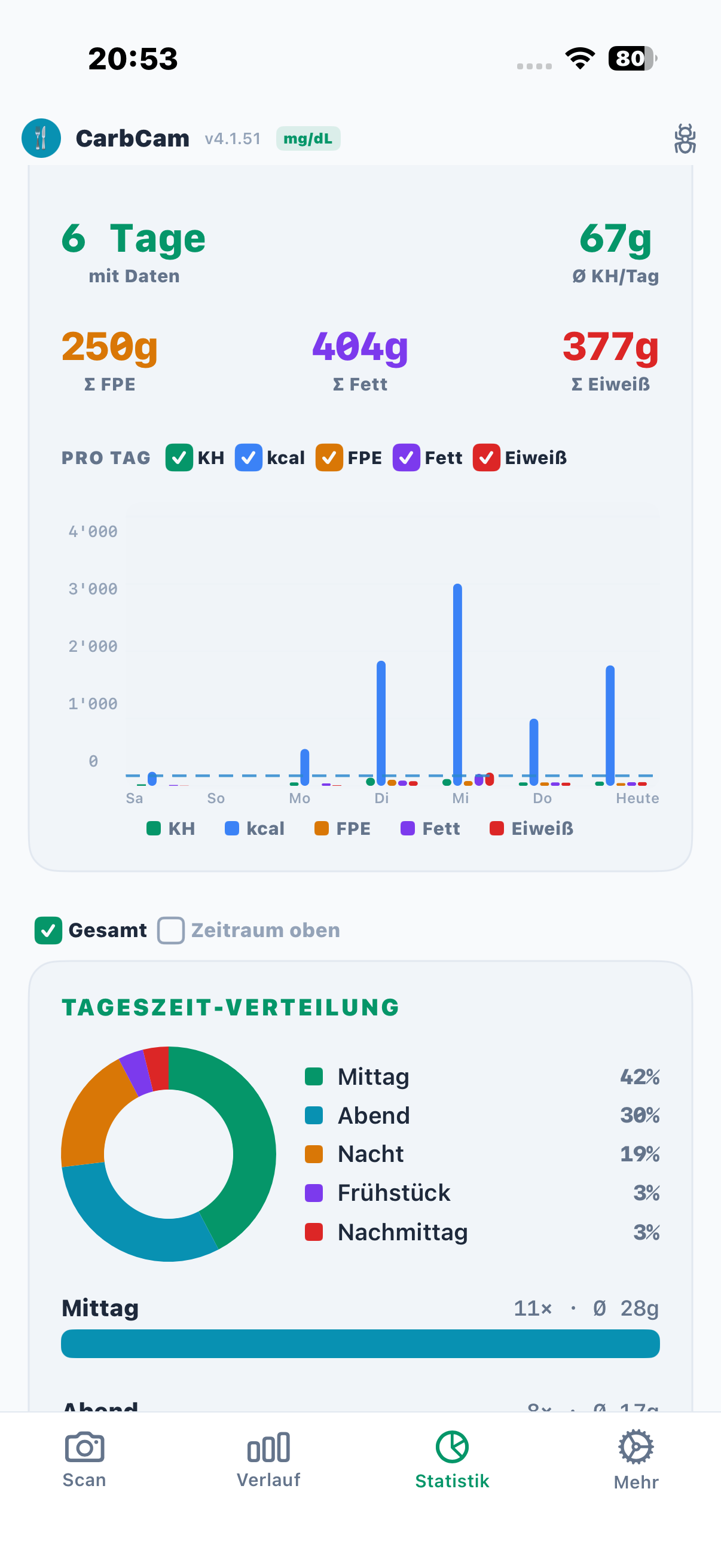
Trends Graph
The graph shows the trend of nutritional values over the selected time period. Tap a data point for details.
Nutritional Values by Time of Day
Broken down into breakfast, lunch, dinner, and snacks — helping you identify patterns in your eating habits.
Weekend patterns
CarbCam compares weekends and weekdays and shows you on which days you eat more carbs or kcal on average.
4 – Settings Tab
The settings are divided into eleven categories:
Nightscout
Nightscout URL, API secret, BG unit (mg/dl or mmol/l), treatment upload on/off. Works with any Nightscout instance — ideal with Managed Nightscout from ns.10be.de.
AI Provider
Default provider, custom API key, model selection, prompt language.
Subscription
Subscription status, credits, restore purchases, cancellation.
Appearance
Dark mode, language, units (g/oz), sorting.
Data & Update
Export (CSV/JSON), update check, app reset / delete all data.
Daily Goals
Set daily carb, kcal, and FPU targets for the Stats evaluation.
Similarity detection
Adjust thresholds for the similarity detection in History.
Open-Source Libraries
List of all open-source libraries and licences used.
AAPS Bridge
Detect third-party apps like AAPS, AAPS PumpControl or AAPS Client — treatments are uploaded directly via AAPS instead of pushing in parallel to Nightscout.
BG Quality
Your own thresholds for the BG zones very good / okay / out of range — feeds into statistics, Doctor mode and BG curve overlay.
Scientific Sources
Linked studies on carb estimation, FPE, glycemic index and insulin action profiles — readable in the app.