CarbCam: Help
Help & Guides
CarbCam estimates carbohydrates from a photo — fast, private and built for everyday diabetes management. Here you’ll find everything you need to get started and for daily use.
Quick Start
Three steps from camera to carb estimate:
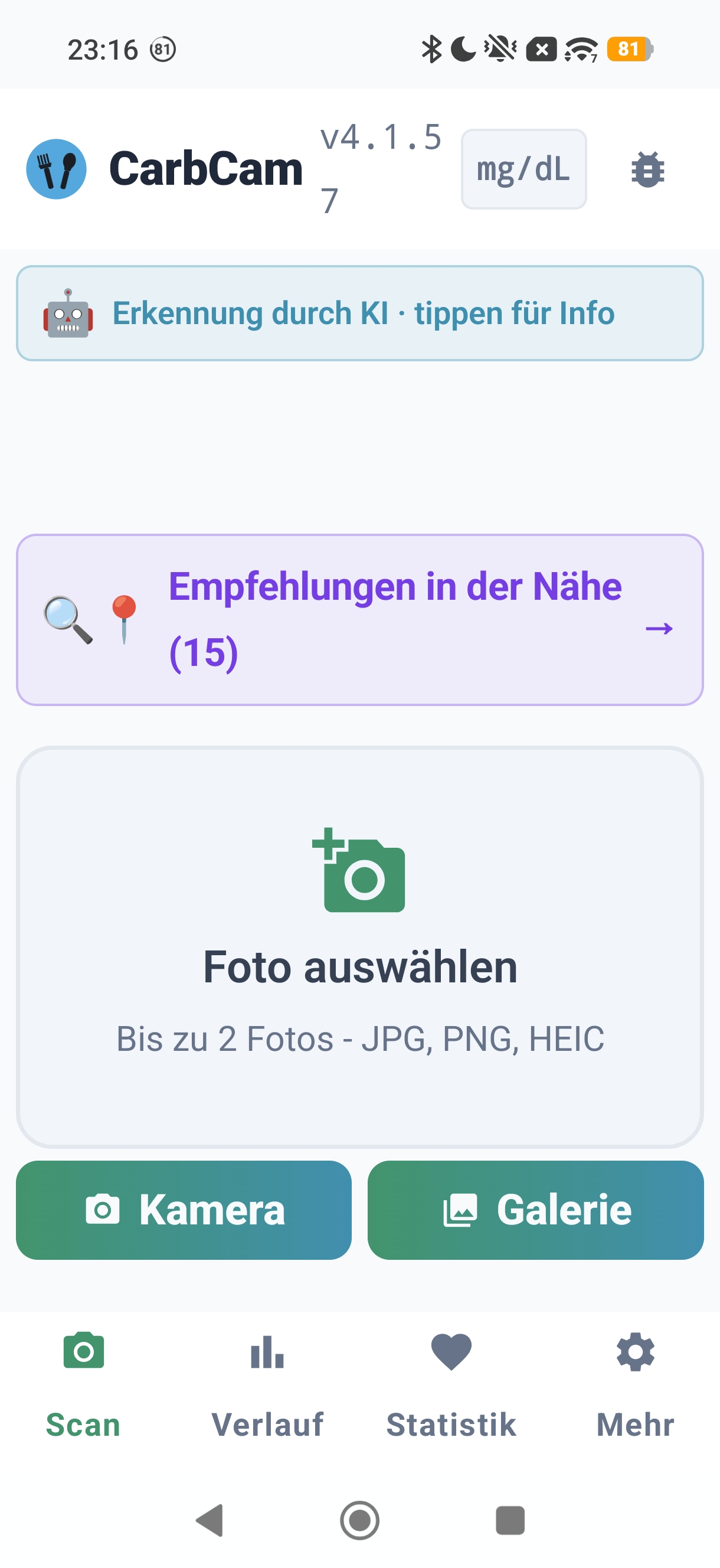
Take a Photo
Open the Scan tab and photograph your meal — or choose an image from your gallery.
Review Values
CarbCam shows you carbs, kcal, fat, protein and FPU. Adjust if needed.
Save
Tap Save. The entry is added to your history and optionally synced to Nightscout.
Topics
Quick Answers
Troubleshooting
Scan doesn't work / no result
Check camera permission in your system settings. Take a bright, sharp photo with the full plate in frame. If you use your own API key (BYOK): is the key valid and does it have credit at the provider?
Nightscout connection fails
URL correct (with https://, no trailing slash)? API secret or token configured in NS settings? Server reachable in the browser? Tip: Managed Nightscout hosting on ns.10be.de takes care of the setup.
Meal not showing up in Nightscout
Is treatment upload enabled in the app settings? Does your NS web filter pass through notes? Manual refresh in the NS web view. Re-saving the entry in CarbCam forces a re-sync.
BG analysis: empty text field
AI provider quota reached or BYOK key expired? Use the “New” button in meal detail (fresh call, no cache). For repeat failures, switch provider in settings.
Quota / analysis limit reached
Subscriptions reset on the next billing date (end of billing period). Bonus credits can be purchased as a one-off. Apple Family Sharing is NOT supported for the subscription — each account needs its own subscription.
App crashes or freezes
In Settings → Debug log, export the log and attach it to the feedback form. Restart the device and update to the latest app version.
Direct contact
In-app feedback (Settings → Feedback) or by email to support@carbcam.app.
Need Help?
In-App Feedback
Settings → Feedback — your message goes directly to the developer.
Feedback History
Your feedback history is visible directly in the Feedback screen — with developer replies.